CSV file conversion to binary format for faster time series data plotting
Nikolas Tolvanen / January 14, 2026
When I was working on the Signal Analyzer project, I faced a problem that loading a huge CSV data file for plotting takes a long time. I was able to solve this problem by converting a csv file to a binary format first, and then loading the binary file instead of the csv file. This made the loading time much faster.
In this post, I tell how to do this file conversion and how to load and plot the binary formatted file. I also show test results that show how much faster the loading time becomes.
How to convert a CSV file to binary format
This example show how to convert a CSV file, that has two columns, to binary format. The CSV file has columns "adc1" and "adc2". These two columns are two different signals. The data in the CSV file looks like in the image below.
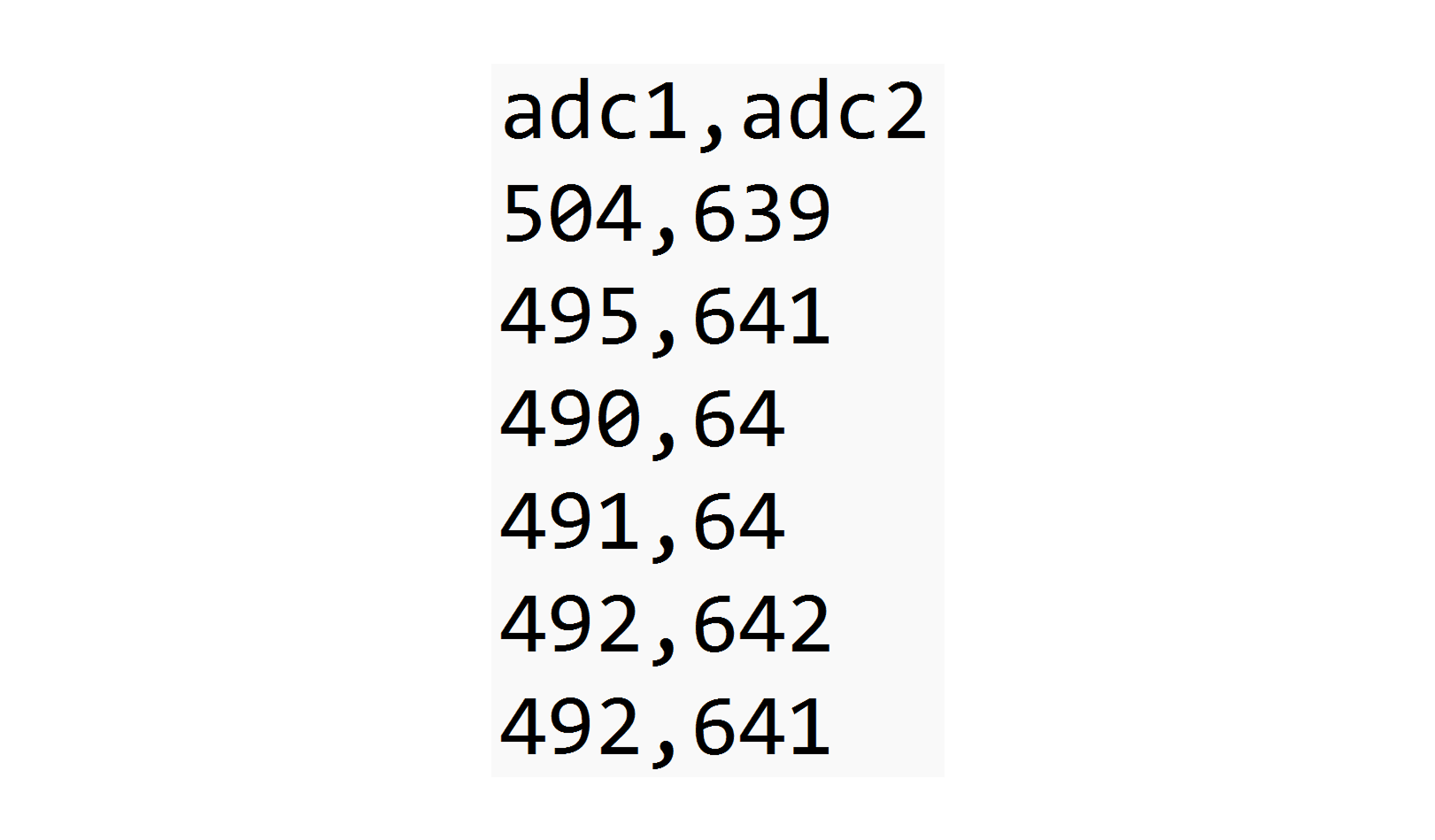
The code to do the conversion is shown below. First the CSV is read into a Pandas DataFrame. Then the signals are converted to 16-bit integers. Then the signals are interleaved so the signals are read alternating adc1 and adc2. Then the data is saved as a raw binary file.
# read the file
df = pd.read_csv(file_path, low_memory=True)

# convert the columns to 16-bit integers
signal_1 = np.asarray(df["adc1"], dtype=np.int16)
signal_2 = np.asarray(df["adc2"], dtype=np.int16)

# interleave the two signals columns
interleaved = np.column_stack((signal_1, signal_2))

# write the data to disk
interleaved.tofile(save_path)
Loading a binary formatted file for plotting
The following code shows how to load a .bin file for plotting.
# calculate how many rows of data there is
# each row has two values (adc1 and adc2)
number_of_rows = file_size // (2 * np.dtype(np.int16).itemsize)

# memory-map the binary file
raw_data = np.memmap(file_path, dtype=np.int16, mode="r", shape=(number_of_rows, 2))

# copy to NumPy array
raw_data = np.array(raw_data, copy=True)

# fist data column is signal_1 and the second is signal_2
self.signal_1 = raw_data[:, 0]
self.signal_2 = raw_data[:, 1]
Tests
These time measurement tests are done using Pythons time.perf_counter function and on a plugged-in laptop with Intel Core Ultra 5 125H processor. On the table below is show the size of the CSV file. The binary file size means the size of a file that has the same data as the CSV file, but in binary format.
| CSV file size | CSV loading time | Binary file size | Binary loading time |
| 534.7 MB | 4.2 seconds | 237.6 MB | 0.12 seconds |
| 2 079.0 MB | 18.0 seconds | 923.5 MB | 1.5 seconds |
Loading a 522 MB csv file takes aproximately 4.20 seconds. Loading that same data in binary format takes 0.12 seconds. On a 2 GB file loading time goes from 18 seconds to 1.5 seconds.